Query Composer is a self-service data exploration and querying tool within Curiosity that enables users to access, explore, analyse and validate data from connected data sources through an intuitive interface.
Instead of accessing databases directly or using specialist database tools, Query Composer provides a convenient central location for users to browse available data sets, build SQL queries, execute them and view the results instantly.
Since modern organisations often store vast amounts of information across multiple databases, applications and platforms, finding relevant data and validating information can be time-consuming and may require assistance/access from database administrators or technical teams.
Query Composer simplifies this process by allowing users to:
Explore available data sources through an interactive schema browser
Write and execute SQL without leaving Curiosity
Validate test data quickly during project delivery
Investigate data quality issues
Compare data across multiple systems
Analyse data before creating rules, tests, or reservations
Access multiple databases from a single interface
Perform cross-platform queries across different technologies
This significantly reduces the time needed to locate information and improves productivity when working with enterprise data.
Using Query Composer
Navigate to Enterprise Test Data > Composer > Query Composer
The query composer workspace consists of three main areas:
1. Connection Panel – Located on the left-hand side it is used to:
a. Select data sources
b. Browse schemas
c. Explore tables
d. View columns
e. Review data types
2. Query Editor – located in the upper right section. Used to:
a. Write SQL statements
b. Edit existing queries
c. Create multiple query tabs
d. Execute queries
3. Results Panel – Located beneath the query editor. Used to:
a. View returned records
b. Sort data
c. Filter results
d. Export data (where available)
Selecting a Connection
To select a connection:
1. Open the Connection drop-down
2. Select the required data source
3. Expand the schema tree
4. Browse available tables
A filter box is available above the schema tree to help you locate tables, views and columns.
Cross-Platform Querying
A Cross-Platform Query allows user to access and analyse data from multiple systems within a single query session
For example you may need to access data from:
SQL Server
Oracle
PostgreSQL
DB2
Other supported connectors
Instead of switching between systems, Query Composer provides a unified view.
How to Use Cross-Platform Query
To create a Cross-Platform Query, select Cross-Platform Query from the Connection drop-down list.
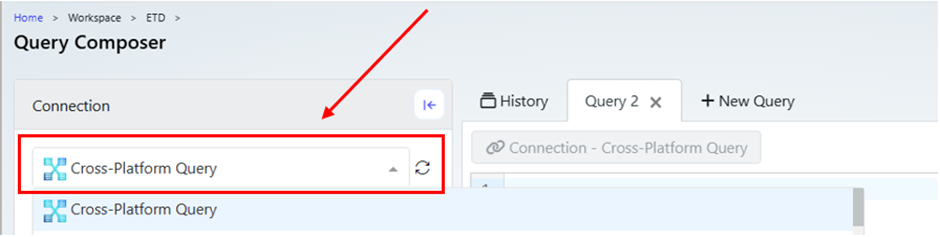
Once selected, choose the connections you want to include in the query. Select two connections to perform a cross-database analysis. After confirming your selection, the chosen connections will be displayed in the left-hand schema browser.
From here, you can:
Expand databases and schemas
Browse available tables and views
View column names and data types
Build SQL queries using objects from multiple data sources
This provides a single workspace for analysing and comparing data across different systems without needing to switch between database tools.
Quick Actions
Each table includes a Quick Actions menu, identified by the lightning bolt icon. These shortcuts automatically generate common SQL statements, helping users work more efficiently without manually writing basic queries.
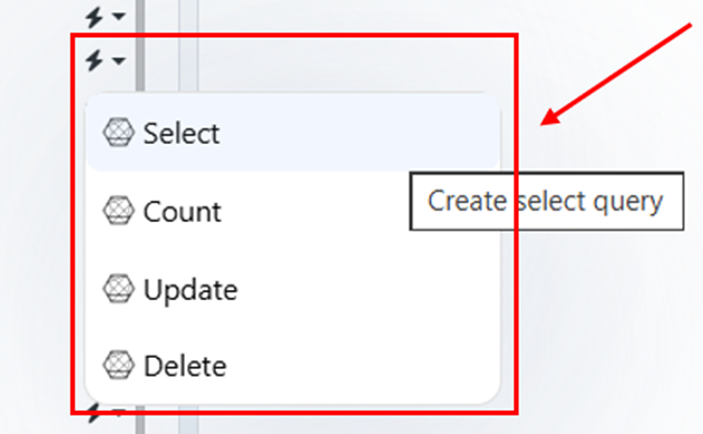
Available quick actions include:
Select – Generates a SELECT statement to retrieve data from the table.
Count – Generates a COUNT query to return the number of records in the table.
Update – Generates an UPDATE statement template.
Delete – Generates a DELETE statement template.
These options provide a quick starting point for common data exploration and management tasks.
Query Toolbar
The toolbar located in the top-right corner of the Query Editor provides several useful functions for managing your queries.
Available actions include:
Execute – Run the current query and display the results.
Clear – Remove the current query from the editor.
Load Query – Open a previously saved query.
Save Query – Save the current query for future use.
Create Pipeline – Convert the query into a pipeline, allowing it to be incorporated into automated data processing and workflow activities.
These features make it easy to manage, reuse, and execute queries directly from within Query Composer.