This guide explains how to customise the branding and appearance of the Embedded Job Submission interface within the platform. Administrators can tailor the header, colours, and displayed form to create a seamless, on‑brand experience for users executing jobs.
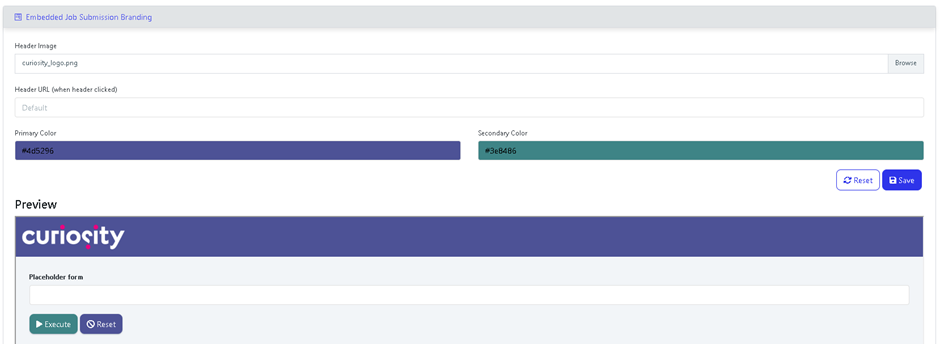
Overview
The Embedded Job Submission page allows you to configure the visual presentation of job submission forms that appear within your application. These customisation options include:
Header Image
Header URL
Primary and
Secondary Colours
Placeholder Form Preview
These elements control the look and feel of the interface where end users launch and manage embedded jobs.
Header Image
You can upload a custom header image that appears at the top of the Embedded Job Submission component.
How to update:
Click the Browse button in the Header Image field.
Select your desired image file.
Once uploaded, the preview updates automatically.
This image typically includes your company or product logo to reinforce brand identity.
Header URL
The Header URL determines the destination when a user clicks the header image.
Options:
Leave the default setting if no link is required.
Enter a custom URL (e.g., your homepage or documentation portal).
When configured, clicking the header image redirects users to the specified link.
Primary and Secondary Colours
Brand‑aligned colours can be applied to the interface via two colour selectors:
Primary Colour – Used for the main header bar and other primary UI elements.
Secondary Colour – Used for secondary accents or supporting UI components.
Enter HEX codes directly or use the colour picker to adjust the values. The preview updates instantly, allowing you to validate visual consistency.
Preview Panel
The preview section provides a real‑time demonstration of how your selected branding settings will appear.
Elements included in the preview:
The uploaded header image.
The primary colour applied to the top banner.
The secondary colour applied to supporting UI areas.
A Placeholder form representing the job submission form that end users will interact with.
Placeholder Form
The Placeholder form in the preview is an example representation of where the real job form will be displayed. When a configured job is launched from within the tool, its fields, inputs, and options will appear in this space.
This helps administrators understand how the final embedded job experience will look once linked to live job definitions.