This page covers how to build a piece of subset SQL that auto-builds scripts across related tables. That SQL is useful on its own (for quick subsetting or data exploration), and it's also useful in applying it to the transform rule accelerator at to auto-populate a Transform's sources and targets, see Setting Up a Transform Data Activity.
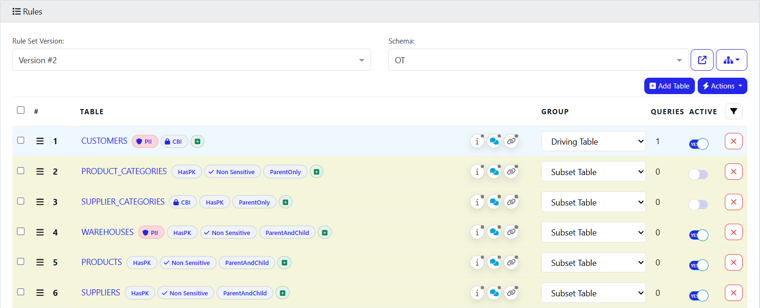
1. Add the tables into a subset definition
Open a subset definition and add the tables you're interested in - you don't need to be precise or turn anything off at this point.
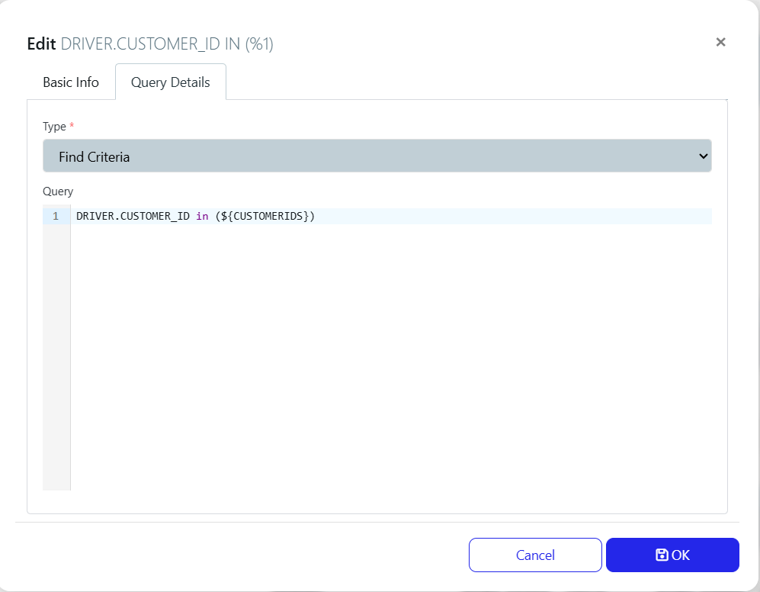
2. Add driving criteria as a variable
Give the subset some driving criteria (via the Driving table) by writing a query that uses the ${...} curly-brace variable nomenclature (e.g. a customer-ID filter). Using this nomenclature is what lets the platform convert the criteria into a variable, one that gets substituted with a real value later, whether that's from a generated form or filled in by hand.
3. Generate the scripts and run row counts
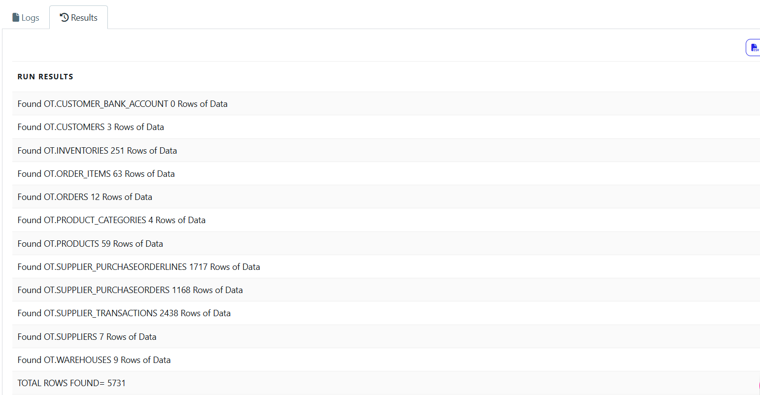
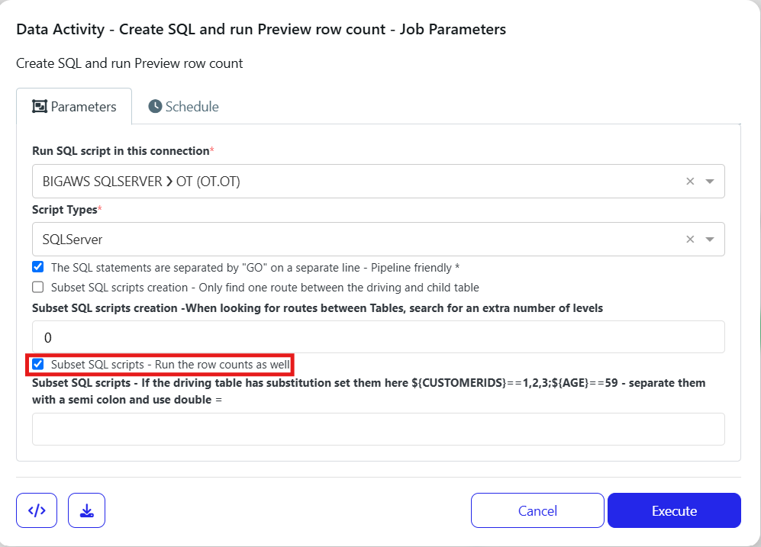
Fill in the connection details (e.g. SQL Server, source database) and use create SQL and run Preview row count to execute against your driving criteria. This does two things at once:
Runs a row count based on the criteria you entered (e.g. a specific set of customers), so you can see the resulting data volumes before committing to anything.
Builds the underlying SQL scripts. For simple/reference tables (e.g.
Customers) this is just a straightforward filter (WHERE 1=1-style); for related child tables further down the chain (e.g.Warehouses), the tool automatically constructs the joins needed to get there, walking from the driving table through every intermediate table (e.g.Customers -> Orders -> Order Items -> Products -> Inventories -> Warehouses) without you having to write any of the joins yourself.
4. Preview the data before running the full subset
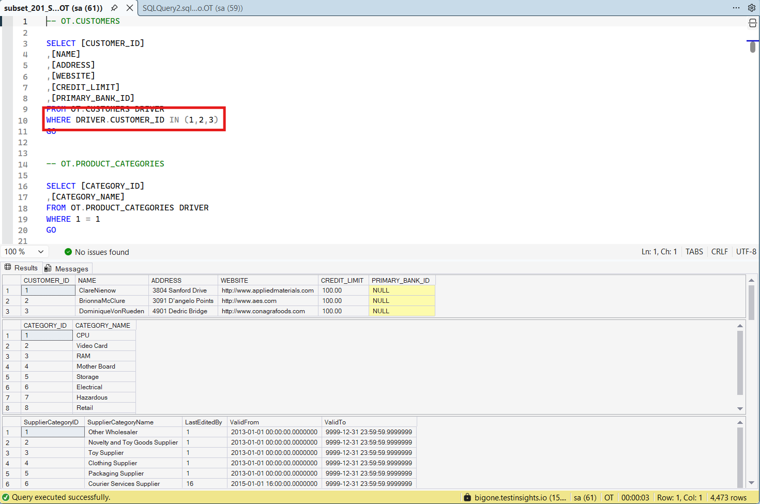
You can substitute a real value into the generated ${...} placeholder directly in the SQL (e.g. swap it for an actual ID), copy that SQL into a SQL browser/query window, and run it there. This is a quick way to see the exact data your criteria will pull before you commit to running the full subset into a new schema and browsing it there.
5. Handling multiple routes between tables
Sometimes there's more than one way to reach a table - e.g. a Supplier table might be reachable both via Purchase Orders → Purchase Order Lines and via a Transactions table. By default the tool builds an OR clause covering every route it finds. If you don't need to distinguish between them, toggle only find one route between the driving and child tables so it stops hunting for alternate paths once it's found the first one, this keeps the generated script simpler.
Using in the Transform Data Activity
Once you have subset SQL you're happy with, it's ready to feed straight into the transform rule accelerator, see step 4 of Setting Up a Transform Data Activity
Notes
Use only find one route between the driving and child tables if you don't need every alternate path a table can be reached by, it keeps the generated script (and therefore what the accelerator picks up) simpler.
You can sanity-check a subset query before committing to a full run: substitute a real value for the
${...}placeholder and run the generated SQL directly in a SQL window.