BPMN Functionality within Quality Modeller
Start Events
Overview
A Start Event marks the beginning of a process flow. Every process must have at least one start event, and the type of start event determines how and why the process instance is triggered. The start event selected communicates the triggering condition to anyone reading the diagram.
1. Message Start Event

Trigger: The process starts when a specific message is received from an external participant, system, or process.
Typical use cases:
A customer submits an order via a web form, triggering an order-fulfilment process
An incoming API call or webhook kicks off a workflow
A support ticket is created in an external system and picked up by an automated process
Notes:
Represents an asynchronous, event-driven trigger, the process is waiting for something to arrive rather than being started on a schedule or by hand.
Often paired with a message end event or intermediate message events elsewhere in the same collaboration to show a full request/response exchange.
2. Timer Start Event

Icon: Clock
Trigger: The process starts at a specific date/time, after a set duration, or on a recurring schedule
Typical use cases:
A nightly batch job that runs test suites at 2:00 AM
A weekly report generation process
A reminder process that fires 30 days after account creation
Notes:
Common in scheduled automation and recurring test executions.
The specific schedule (once, recurring, or after a delay) is usually configured as a property on the event rather than shown directly in the diagram.
3. Signal Start Event

Trigger: The process starts when a signal is broadcast. Signals are different from messages in one key way: they are broadcast to all listening processes rather than sent to a single named recipient, and they aren't tied to a specific message flow between two participants.
Typical use cases:
A "deployment complete" signal that simultaneously kicks off several independent verification processes
A broadcast event like "environment reset" that multiple test processes are all listening for
Cross-process coordination where one process's completion should fan out to trigger many others
Notes:
Signals are global in scope within a process definition, any process modelled to listen for that signal name will respond, which makes this event useful for one-to-many triggering.
4. Conditional Start Event

Trigger: The process starts when a specified condition becomes true, based on evaluating some business data or system state rather than receiving an explicit message or signal.
Typical use cases:
Start a process automatically whenever a database record's status field changes to "Approved"
Trigger a process when inventory falls below a threshold
Kick off a workflow when a business rule evaluates to true during ongoing monitoring
Notes:
Distinguishes itself from message/signal starts because there's no explicit "send", the condition is continuously evaluated until it's satisfied.
Useful for data-driven or state-driven triggers where no other process explicitly notifies this one.
5. Multiple Start Event

Trigger: The process can be started by any one of several defined triggers (an OR relationship). If Trigger A, B, or C occurs, the process starts.
Typical use cases:
A support process that can be started either by an incoming message or by a timer-based escalation, whichever happens first
A process that should start on a manual request or an automatic signal, without needing both
Notes:
Only one of the configured triggers needs to fire, it's inclusive-OR logic at the start of the process.
Useful for consolidating multiple entry points into a single process definition instead of maintaining separate near-duplicate processes.
6. Parallel Multiple Start Event

Trigger: The process starts only when all of several defined triggers have occurred (an AND relationship). Every configured trigger must fire before the process instance begins.
Typical use cases:
A process that should only start once both a message has arrived and a timer condition has elapsed
Synchronizing multiple upstream signals before starting downstream work, ensuring no premature start
Notes:
The "+" in the icon is the visual cue distinguishing this from the plain Multiple Start Event, it signals AND logic instead of OR logic.
Less common than the other start events, since it requires careful coordination of multiple upstream triggers, but valuable when a process genuinely shouldn't begin until several preconditions are all met.
Start Event | Trigger Logic | Fires When |
|---|---|---|
Message Start | Single named trigger | A specific message is received |
Timer Start | Single named trigger | A scheduled time/date/interval is reached |
Signal Start | Single named trigger | A broadcast signal is raised |
Conditional Start | Single named trigger | A defined condition evaluates to true |
Multiple Start | OR (any one) | Any one of several defined triggers occurs |
Parallel Multiple Start | AND (all) | All of several defined triggers have occurred |
2. Intermediate Events
Overview
Intermediate Events occur somewhere between the start and end of a process, they represent something that happens during the flow. They're drawn as a double-bordered circle.
Most intermediate events come in two flavours:
Catch, the process waits for something to happen (receiving), and execution pauses at that point until the trigger occurs.
Throw, the process actively sends or raises something at that point in the flow (sending), and execution continues immediately after.
1. Message Catch

Behaviour: The process pauses and waits until a specific message arrives from another participant or process.
Typical use case: A process pauses after submitting a request and waits for a confirmation message before continuing (e.g., waiting for an approval reply).
2. Message Throw

Behaviour: The process sends a message to another participant at this point, then continues immediately, it does not wait for a response.
Typical use case: Notifying another system or team that a step has been completed, without pausing for acknowledgement.
3. Timer Catch

Behaviour: The process pauses at this point for a defined duration, or until a specific date/time, before continuing.
Typical use case: A wait step, e.g., pause for 24 hours before sending a follow-up, or wait until a scheduled maintenance window before proceeding.
4. Signal Catch

Behaviour: The process pauses and waits for a broadcast signal to be raised elsewhere (by any process), then continues.
Typical use case: Waiting mid-process for a broadcast "go-live" signal from an unrelated process before resuming.
5. Signal Throw

Behaviour: The process broadcasts a signal at this point, which any number of other processes may be listening for, then continues immediately.
Typical use case: Announcing "stage 1 complete" so that multiple independent downstream processes can react, without needing to know who's listening.
6. Conditional Catch

Behaviour: The process pauses and waits until a specified condition becomes true (based on data or system state), then continues.
Typical use case: Pausing mid-process until a database flag changes or a threshold is met, without an explicit message or signal being sent.
7. Link Catch

Behaviour: Receives control from a corresponding Link Throw elsewhere in the same diagram. Used purely for connecting flows visually.
Typical use case: Continuing a flow that was deliberately broken off (via a Link Throw) to avoid a long crossing line or to jump to a different part of the same diagram/page.
8. Link Throw

Behaviour: Sends control to a matching Link Catch elsewhere in the same diagram, effectively acting as a "go to" connector.
Typical use case: Cleaning up diagram layout by connecting two points without drawing a long or crossing sequence-flow line, purely a modelling/readability tool, with no real-world waiting or messaging involved.
9. Escalation Throw

Behaviour: Raises an escalation at this point in the flow, typically to notify a parent process or a broader scope that something needs attention, then continues.
Typical use case: A sub-process throws an escalation to flag an issue up to the parent process (e.g., "this step is taking too long" or "manual intervention needed") without necessarily stopping the sub-process itself.
10. Compensation Throw

Behaviour: Triggers compensation, i.e., invokes the "undo" logic associated with a previously completed activity, at this point in the flow, then continues.
Typical use case: Rolling back a previously completed step after a later step fails (e.g., a booking is cancelled and a compensating "release seat" activity is triggered after payment fails downstream).
11. Multiple Catch

Behaviour: The process pauses and waits for any one of several defined triggers (OR logic), whichever happens first resumes the flow.
Typical use case: Waiting for either a message reply or a timeout, whichever comes first, before proceeding down different paths.
12. Multiple Throw

Behaviour: Raises several different triggers simultaneously at this point (e.g., a message and a signal together), then continues.
Typical use case: Simultaneously notifying one specific participant (message) and broadcasting to any listeners (signal) at the same point in the flow.
13. Parallel Multiple Catch

Behaviour: The process pauses and waits until all of several defined triggers have occurred (AND logic) before continuing.
Typical use case: Resuming only once both an expected message has arrived and a required condition has been satisfied, neither alone is enough to proceed.
Event | Catch or Throw | Logic | Behaviour |
|---|---|---|---|
Message Catch | Catch | Single | Waits for a specific message |
Message Throw | Throw | Single | Sends a message |
Timer Catch | Catch | Single | Waits for a duration/date |
Signal Catch | Catch | Single | Waits for a broadcast signal |
Signal Throw | Throw | Single | Broadcasts a signal |
Conditional Catch | Catch | Single | Waits for a condition to be true |
Link Catch | Catch | Single | Receives from a Link Throw |
Link Throw | Throw | Single | Sends to a Link Catch |
Escalation Throw | Throw | Single | Raises an escalation upward |
Compensation Throw | Throw | Single | Triggers rollback/compensation logic |
Multiple Catch | Catch | OR (any one) | Waits for any one of several triggers |
Multiple Throw | Throw | Multiple at once | Sends several triggers at once |
Parallel Multiple Catch | Catch | AND (all) | Waits for all defined triggers |
3. End Events
Overview
An End Event marks the point where a process path terminates. End events are drawn as a thick-bordered circle, with an icon inside indicating how or why the process (or that particular path through it) is ending. A single process can have multiple end events representing different outcomes, success, failure, cancellation etc.
1. Message End

Behaviour: The process path ends by sending a final message to another participant.
Typical use case: Notifying a customer or external system that the process has completed (e.g., "order fulfilled" confirmation sent as the last step).
2. Terminate End

Behaviour: Immediately ends the entire process instance, abandoning any other active parallel paths without waiting for them to finish naturally.
Typical use case: A cancellation or "abort everything" outcome, e.g., a fraud check fails partway through order processing, and all other in-flight branches (payment, shipping prep, notifications) need to stop immediately rather than run to their own completion.
Notes:
This is the most forceful end event, it doesn't just end the current path, it tears down the whole instance.
3. Error End

Behaviour: Ends the current path by throwing a named error, which propagates up and can be caught by an error boundary event on an enclosing sub-process or activity.
Typical use case: A validation step fails in a way that should be handled by error-handling logic elsewhere in the model (e.g., a sub-process throws an error that the parent process catches and routes to a remediation path).
4. Escalation End

Behaviour: Ends the current path by raising an escalation, intended to be caught by an escalation boundary event on an enclosing scope, signalling "something notable happened" without necessarily treating it as a failure.
Typical use case: A sub-process completes but needs to flag something upward for visibility or follow-up (e.g., "completed, but manual review recommended") rather than a hard error.
5. Signal End

Behaviour: Ends the current path by broadcasting a signal, which any number of other processes may be listening for.
Typical use case: Announcing "batch job finished" so that multiple unrelated downstream processes can react, without needing to know who (if anyone) is listening.
6. Cancel End

Behaviour: Ends the current path specifically in the context of a transaction sub-process, signalling that the transaction should be cancelled and any compensation logic for already-completed steps within it should run.
Typical use case: Used exclusively inside BPMN transaction sub-processes, e.g., a multi-step booking transaction is cancelled partway through, triggering rollback of steps already completed within that transaction.
Notes:
This event type is meaningful only within a transaction sub-process; it isn't used in ordinary process flows.
7. Compensation End

Behaviour: Ends the current path by triggering compensation, invoking the "undo" logic associated with previously completed activities.
Typical use case: A process branch that exists specifically to handle rollback: once compensation has been triggered and handled, this end event closes out that rollback path.
8. Multiple End

Behaviour: Ends the current path by throwing several different results simultaneously (e.g., a message and a signal together).
Typical use case: Ending a path that needs to both notify a specific participant (message) and broadcast completion to any listeners (signal) at the same time.
Event | Result thrown | Typical scope |
|---|---|---|
Message End | A message | Notifying a specific participant |
Terminate End | Immediate full stop | Entire process instance |
Error End | A named error | Caught by an enclosing error boundary event |
Escalation End | An escalation | Caught by an enclosing escalation boundary event |
Signal End | A signal | Broadcast to any listening processes |
Cancel End | Transaction cancellation | Transaction sub-processes only |
Compensation End | Compensation trigger | Rollback/undo paths |
Multiple End | Several results at once | Combined notification |
4. Tasks
Overview
Tasks are the atomic units of work within a BPMN process, a single step that isn't broken down further in the diagram (as opposed to a sub-process, which contains its own nested flow). BPMN defines several task types specifically to communicate who or what performs the work and how it's performed, rather than leaving every step as a generic, undifferentiated box.
Tasks are drawn as a rounded rectangle, with a small icon in the top-left corner indicating the task type.
1. User Task
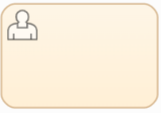
Behaviour: Work performed by a human, typically through a task list or form presented by a workflow engine (e.g., "review and approve this request").
Typical use case: A manager approves a purchase request through a task inbox; an agent manually reviews a flagged transaction.
2. Service Task
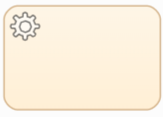
Behaviour: Work performed automatically by a system or service, no human involvement. Usually represents a call to an API, an automated script execution, or an internal system operation.
Typical use case: Automatically calling a payment gateway API to charge a customer; running an automated data validation check.
3. Script Task
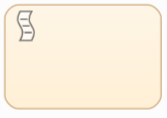
Behaviour: Work performed automatically by executing a script directly within the process engine itself (as opposed to a Service Task, which typically calls out to an external service).
Typical use case: Running a small inline calculation or data transformation, e.g., formatting a date field or computing a derived value, using an embedded scripting language rather than an external system call.
4. Manual Task
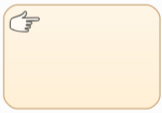
Behaviour: Work performed by a human, but outside the process engine's visibility, there's no task list, form, or system interaction involved. The engine simply waits for this step to be marked complete.
Typical use case: A physical, offline activity like packing a box for shipment, or a phone call made outside any tracked system, something a human does, but not through a digital task interface.
Notes:
The distinction from User Task is important: User Task implies the engine presents work via a task list/form; Manual Task implies the work happens entirely off-system.
5. Send Task
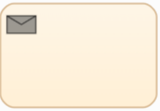
Behaviour: A specialized task whose sole purpose is sending a message to an external participant, then completing immediately (fire-and-forget).
Typical use case: Sending a confirmation email or notification as a discrete process step.
Notes:
Functionally similar to a Message Throw intermediate event, but modeled as a task rather than an event, often used when the "send" is a first-class step in the process rather than a side-effect of passing through a point in the flow.
6. Receive Task
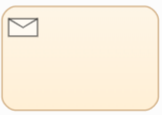
Behaviour: A specialized task that pauses the process until a specific message is received, then completes.
Typical use case: Waiting for a reply from an external system or partner before continuing, e.g., waiting for a supplier's order confirmation.
Notes:
Functionally similar to a Message Catch intermediate event, but modeled as a task, often used to represent "waiting for a reply" as a discrete step in a request/response task pairing (Send Task followed later by Receive Task).
7. Business Rule Task

Behaviour: Work performed by evaluating a business rule or decision table (often via a decision engine such as DMN, Decision Model and Notation) to produce an output based on input data.
Typical use case: Determining a discount tier based on customer purchase history, or evaluating eligibility rules for a loan application, where the logic is best expressed as a rules/decision table rather than a script.
Task Type | Performed By | Key Distinction |
|---|---|---|
User Task | Human, via task list/form | Engine tracks and presents the work |
Service Task | System/automated | Calls an external service/API |
Script Task | System/automated | Runs an inline script within the engine |
Manual Task | Human, off-system | No engine visibility into how it's done |
Send Task | System/automated | Sends a message, fire-and-forget |
Receive Task | System/automated | Waits for an incoming message |
Business Rule Task | System/automated | Evaluates a decision table/rule set |
5. Gateways
Overview
Gateways control how a process branches and merges, they determine which path (or paths) the flow takes based on conditions, events, or combination logic.
Where a task represents work, a gateway represents a decision point, it does no work itself, it only routes the flow.
1. Exclusive Gateway (XOR)

Behaviour: Routes the flow down exactly one of several outgoing paths, based on evaluating conditions in order. Only one branch is taken.
Typical use case: "If order value > $100, apply free shipping; otherwise, charge standard shipping", only one of the two outcomes happens.
Notes:
The most common gateway type. Conditions are typically evaluated in a defined order, with a default path often configured in case no condition matches.
2. Parallel Gateway (AND)

Behaviour: Splits the flow into all outgoing paths simultaneously (fork), or, when used to merge, waits for all incoming paths to complete before continuing (join). Not conditional, every path is taken.
Typical use case: After an order is placed, simultaneously trigger "prepare shipment" and "send confirmation email" as two parallel branches that both must happen.
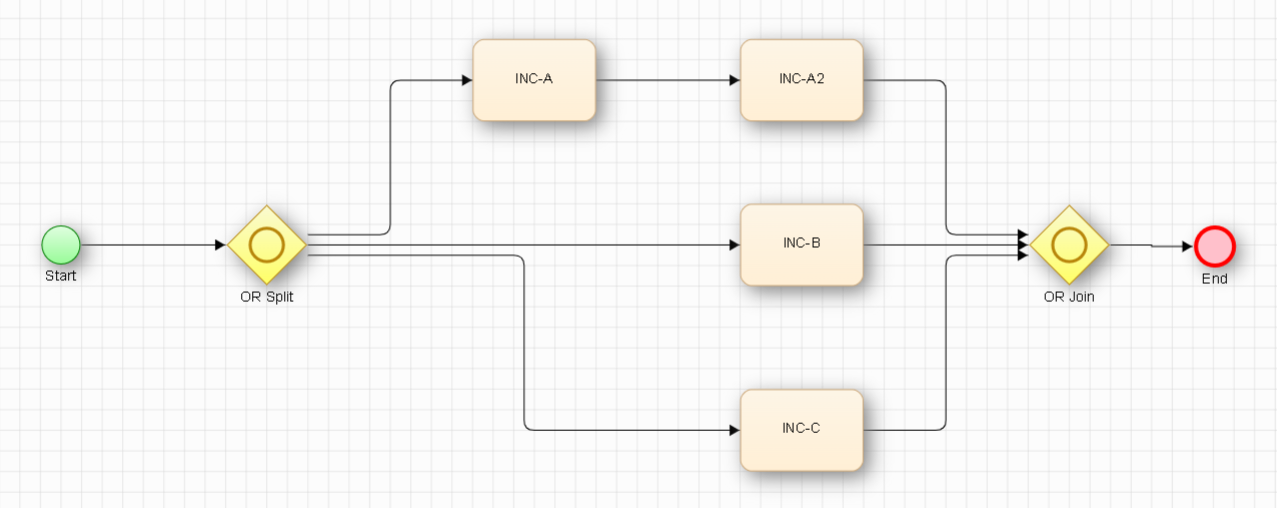
3. Inclusive Gateway (OR)

Behaviour: Routes the flow down any number of outgoing paths (one, several, or all) based on evaluating conditions independently, each condition that's true activates its corresponding path. When merging, it waits only for the paths that were actually activated.
Typical use case: "Notify by email if the customer opted in; notify by SMS if the customer opted in", both, one, or neither might apply depending on the customer's preferences, and any combination is valid.
Notes:
The trickiest gateway to model correctly at the merge point, since the engine needs to know how many of the possible paths were actually activated before it can safely proceed.
4. Complex Gateway

Behaviour: Used when the branching or merging logic can't be expressed with the standard Exclusive/Parallel/Inclusive semantics, the condition is a custom expression defined by the modeler (e.g., "proceed once at least 2 of these 4 paths have completed").
Typical use case: Advanced synchronization logic that doesn't fit a simple AND/OR/XOR pattern, e.g., quorum-style rules ("continue once any 3 of 5 approvals are in").
Notes:
Rarely used compared to the other gateway types, and typically requires custom configuration since BPMN doesn't standardize the expression syntax for it.
5. Event-Based Gateway

Behaviour: Routes the flow down exactly one path based on which event occurs first, rather than evaluating data conditions. Each outgoing path is attached to a different catching event (e.g., a message, a timer).
Typical use case: "Wait for either a customer reply (message) or a 48-hour timeout (timer), whichever happens first, and proceed down the corresponding path", this is the gateway equivalent of racing multiple triggers against each other.
Notes:
Functions similarly to a Multiple intermediate catch event, but expressed as a gateway with separate downstream paths per possible event, rather than a single event node with combined OR logic.
Gateway | Logic | Paths Taken |
|---|---|---|
Exclusive (XOR) | Data condition | Exactly one |
Parallel (AND) | None (unconditional) | All |
Inclusive (OR) | Data condition (independent) | Any number (1 to all) |
Complex | Custom expression | Defined by custom logic |
Event-Based | First event to occur | Exactly one, decided by timing |
Gateway Behaviour in relation to Quality Modeller Test Generation
There are only 2 gateways that have an effect on the optimiser within Quality Modeller, Parallel (AND) and Inclusive (OR)
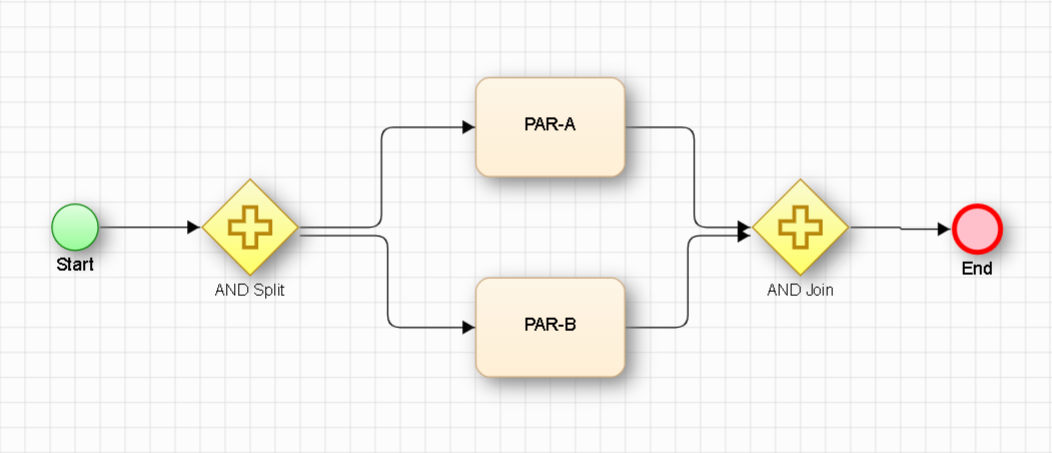
Parallel (AND)
Produces one test path that includes steps from both/all branches
Steps execute in order: all steps on one branch, then all steps on the other (order within branches is currently random)
Inclusive (AND)
Generates all possible combinations of branches that could be true