Introduction
Document Templates let you turn a model into a formatted document, such as a model summary, a requirements write-up or a review pack. You build the template once, then reuse it across any model in the workspace.
A document template is an ordered list of sections. When a document is generated, Quality Modeller builds each section in turn and outputs the result as a DOCX, HTML, Markdown or PDF file.
Sections can contain:
Static text, written in markdown, with model attributes such as the model name or creation date.
An image of the model flowchart.
AI-generated content, using one of your Generative AI prompts.
Content pulled in from the model's subflows (BETA).
The rest of this document shows you how to navigate the Document Templates screen, create a new template and set up each type of section.
Document Templates screen
This is the main screen for viewing and managing your document templates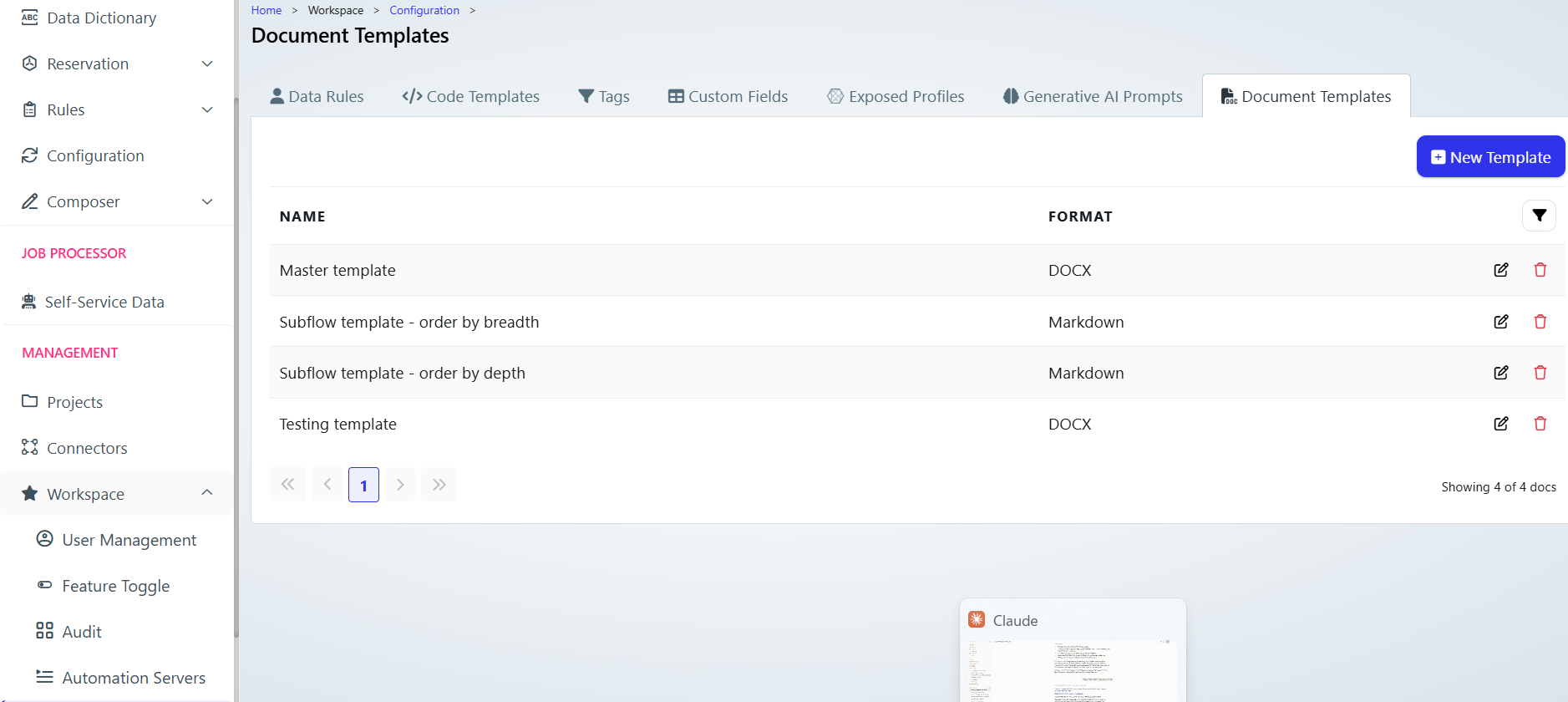
In order to navigate to this screen:
On the left hand menu select:
Management section → Workspace (expanded) → Configuration
On the table select:
Document Templates tab
Document template table column and button descriptions
Column/button name | Content/action |
|---|---|
Name | The name of the template. |
Format | The output format the template generates: DOCX, HTML, Markdown or PDF. |
Action (edit icon) | Opens the template so you can edit its settings and sections. |
Action (bin icon) | Delete this template. |
Filter (funnel icon) | Toggle the search fields for the document templates. |
New Template | Create a new document template. The steps for this are listed in the section Adding a new document template. |
Adding a new document template
This describes the options available when creating a new document template (using the New Template button). The same screen opens when you edit an existing template.
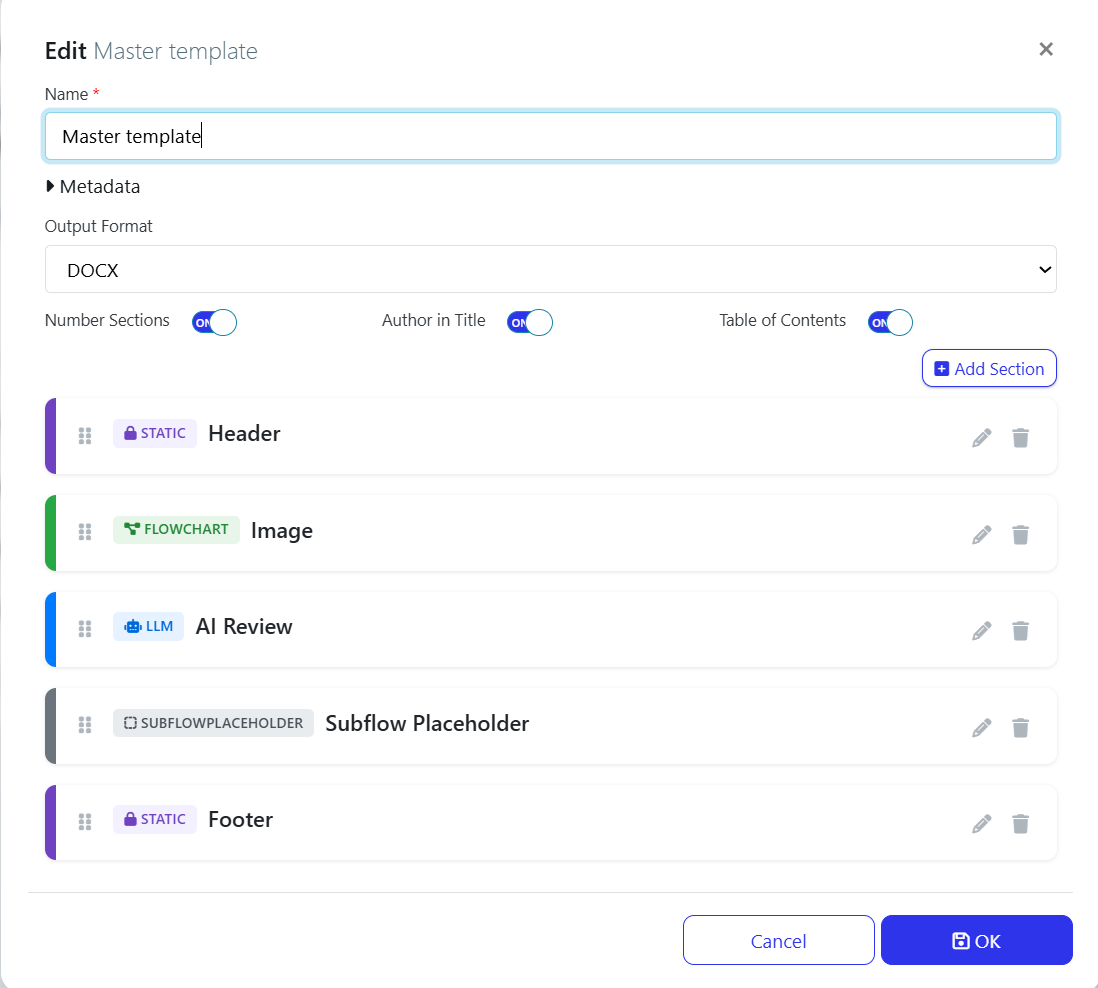
Field/button | Description |
|---|---|
Name | Name for your template. This is required. |
Metadata | Expand to view or add metadata for the template. |
Output Format | The file type the document is generated as. Choose from DOCX, HTML, Markdown or PDF. |
Number Sections | Switch on to number each section in the generated document. |
Author in Title | Switch on to include the author in the document title. |
Table of Contents | Switch on to add a table of contents to the generated document. |
Add Section | Add a new section to the template. The section types are listed in the section Section types. |
Drag handle (dotted icon) | Drag a section up or down to change its position. Sections are generated in the order they appear in the list. |
Edit (pencil icon) | Edit this section. |
Delete (bin icon) | Delete this section. |
Cancel | Close the template without saving your changes. |
OK | Save the template. |
Output Format
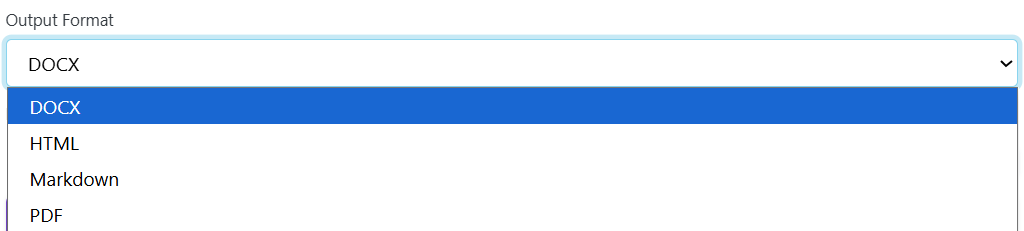
Pick the format that suits how the document will be used. DOCX and PDF suit documents you share or sign off. HTML and Markdown suit documents you publish to a wiki or repository.
Section types
Each section has a type, which sets what content it adds to the document. You choose the type in the Section Type dropdown when adding or editing a section. Every section also has a Name (required) and an optional Metadata area.
Section type | Label in the list | Description |
|---|---|---|
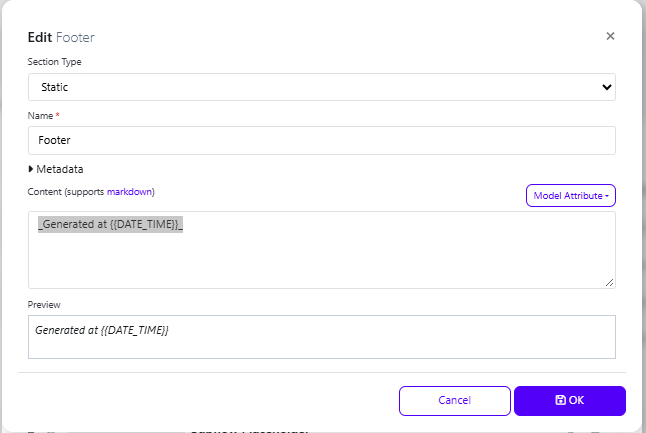
Static | STATIC | Fixed text written in markdown. You can insert model attributes, which are filled in when the document is generated. Use it for titles, headers, footers and any standard wording. |
Flowchart | FLOWCHART | Adds an image of the model flowchart to the document. |
LLM | LLM | Adds AI-generated content, using one of your Generative AI prompts to write about the model. |
SubflowPlaceholder (BETA) | SUBFLOWPLACEHOLDER | Pulls in content from the model's subflows, if there are any. This feature is in BETA. |
Static
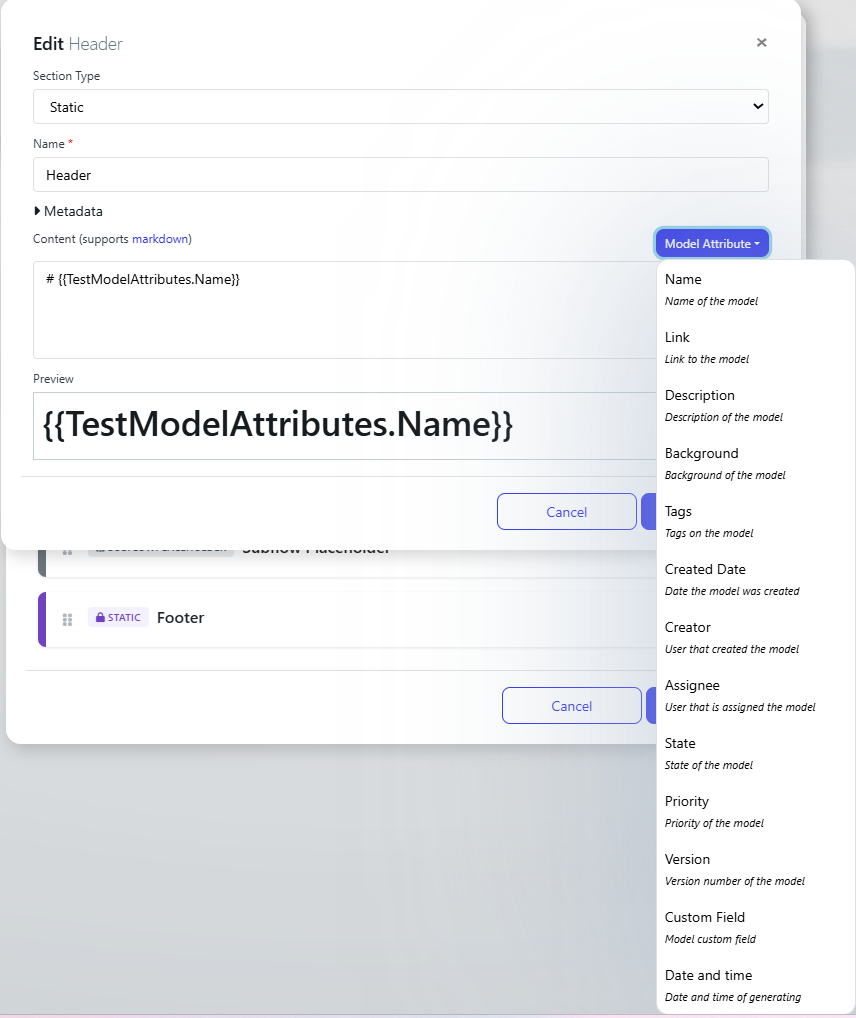
Field/button | Description |
|---|---|
Content | The text for this section. It supports markdown, so you can add headings, bold, italics, lists and links. |
Model Attribute | Inserts a model attribute tag at the cursor, for example {{TestModelAttributes.Name}}. The tag is replaced with the model's value when the document is generated. See the full list in Model attribute list. |
Preview | Shows how the markdown will look. Tags show as written, as they are only filled in at generation. |
Flowchart
Adds an image of the model to the document. Give the section a name and place it where you want the image to appear.
LLM
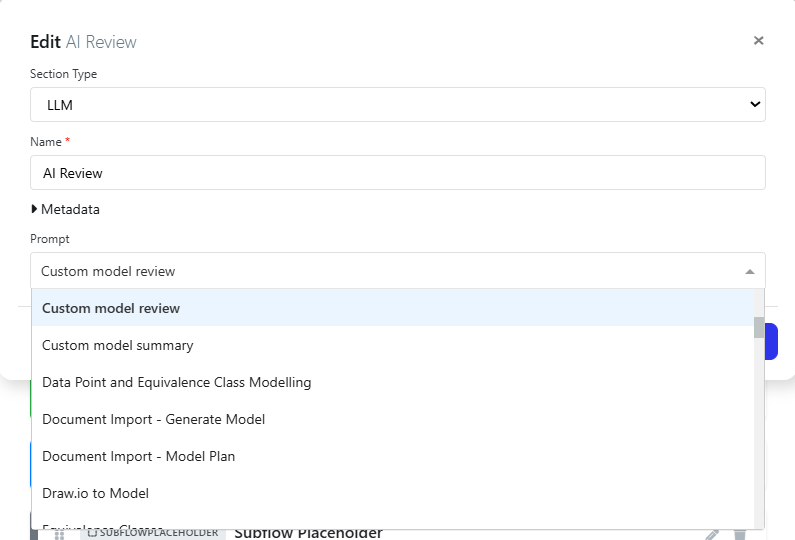
Field | Description |
|---|---|
Prompt | The Generative AI prompt used to write this section, for example Custom model review or Custom model summary. The list shows the prompts available in your workspace. |
Generative AI must be configured for your workspace to use this section type. See Configure Generative AI (Default) Connection.
SubflowPlaceholder (BETA)
Pulls in content from the model's subflows, if there are any. There are no other settings to configure. This feature is in BETA and may change.
Example: Master template
The Master template in the screenshot above produces a DOCX with numbered sections, the author in the title and a table of contents. It is built from five sections, generated in this order:
Order | Section | Type | What it adds |
|---|---|---|---|
1 | Header | Static | The model name as a heading, using |
2 | Image | Flowchart | An image of the model. |
3 | AI Review | LLM | An AI review of the model, using the Custom model review prompt. |
4 | Subflow Placeholder | SubflowPlaceholder (BETA) | Content from the model's subflows. |
5 | Footer | Static | The date and time the document was generated, in italics. |
The Footer section uses the content _Generated at {{DATE_TIME}}_.
Exporting a document using a template
When you want to use a document template to export information from a model, follow the steps below.
Open the model you want to export.
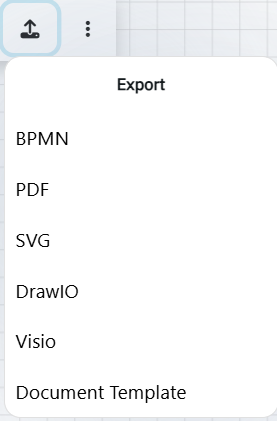
Click the Export button in the model toolbar.

Select Document Template from the Export menu.
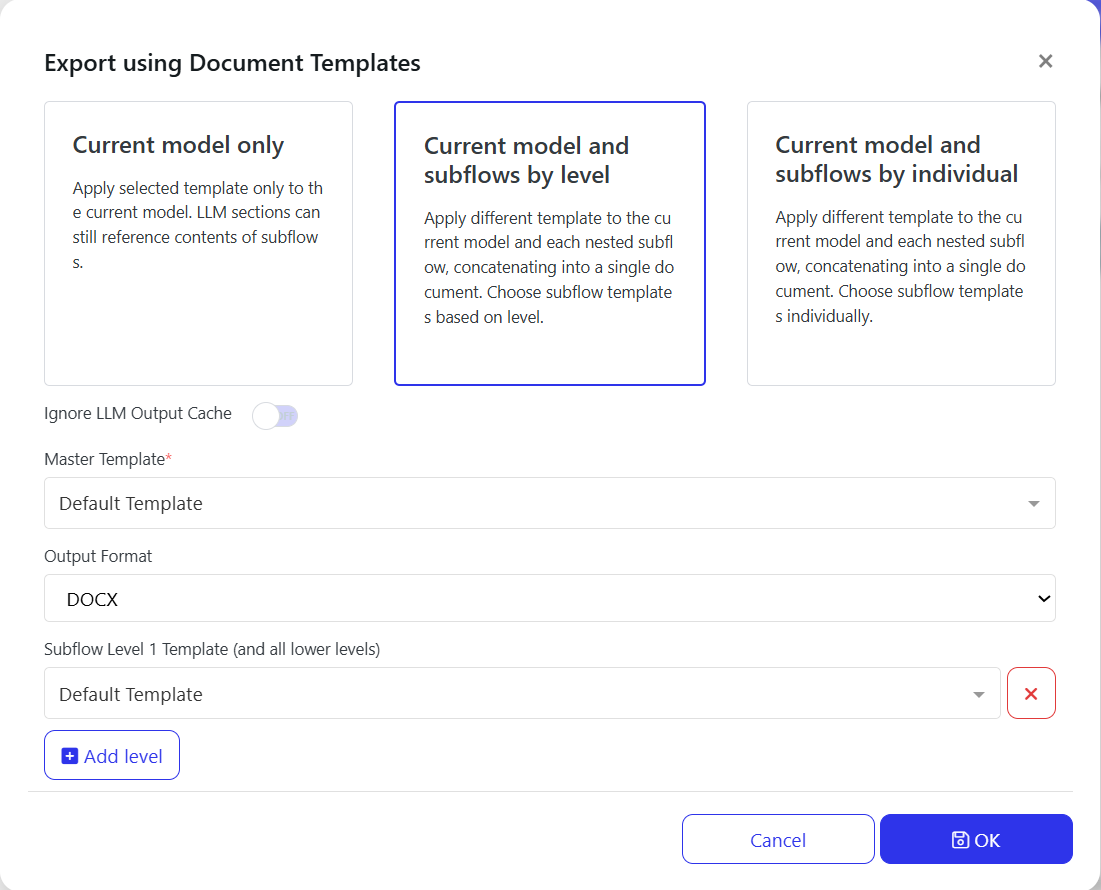
In the Export using Document Templates window, select the configuration you need, as shown below. The fields are described in the table underneath.
Click OK to generate the document.
Export using Document Templates field descriptions
Field/button | Description | |
|---|---|---|
Export option | Choose how the template is applied to the model and its subflows: | |
Current model only | Applies the selected template to the current model only. LLM sections can still reference the contents of subflows. | |
Current model and subflows by level | Applies a template to the current model and a different template to each nested subflow, joined into a single document. You choose the subflow templates by level. | |
Current model and subflows by individual | Applies a template to the current model and a different template to each nested subflow, joined into a single document. You choose a template for each subflow individually. | |
Ignore LLM Output Cache | Switch on to generate fresh content for LLM sections rather than reusing cached output. | |
Master Template | The template applied to the current model. This is required. | |
Output Format | The file type of the generated document: DOCX, HTML, Markdown or PDF. | |
Subflow Level 1 Template (and all lower levels) | The template applied to subflows at level 1 and every level below it. Only shown for Current model and subflows by level. | |
Add level | Adds a template for the next subflow level down. | |
Remove (red x) | Removes that subflow level's template. | |
Cancel | Close the window without exporting. | |
OK | Generate the document. |
Appendix
Model attribute list
These attributes are available from the Model Attribute button in a Static section. Each one is replaced with the model's value when the document is generated.
Attribute | Description |
|---|---|
Name | Name of the model. |
Link | Link to the model. |
Description | Description of the model. |
Background | Background of the model. |
Tags | Tags on the model. |
Created Date | Date the model was created. |
Creator | User that created the model. |
Assignee | User that is assigned the model. |
State | State of the model. |
Priority | Priority of the model. |
Version | Version number of the model. |
Custom Field | Model custom field. |
Date and time | Date and time of generating the document. |