This guide walks you through connecting Curiosity's MCP (Model Context Protocol) bundles, Modelling (Graph) and Enterprise Test Data, to Claude Desktop.
Once connected, you can ask Claude to look up, summarize, and edit your model and test data metadata directly from a conversation.
Note: These instructions apply to Claude Desktop only.
Prerequisites
Before you begin, you'll need:
Claude Desktop installed
The
.mcpbbundle files (available from your Curiosity sales representative)Your TestModeller Partner API key
Important: Treat your API key like a password. Do not share it or paste it into public channels.
Installation Steps
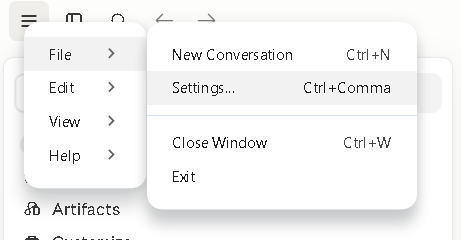
1. Open the Extension Settings
Navigate to:
Settings → Extensions
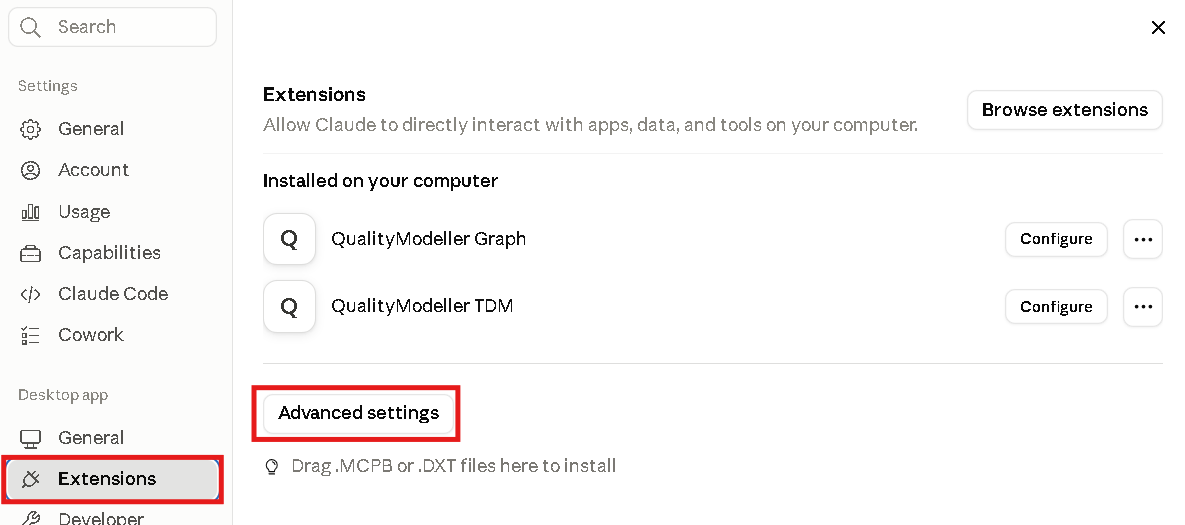
If you have previously connected these extensions, remove any old versions first. Otherwise, select Extensions.
2. Install the Extension
Select:
Advanced Settings → Install Extension...
3. Upload the Bundle
Select the .mcpb file for the bundle you're installing, then click Install.
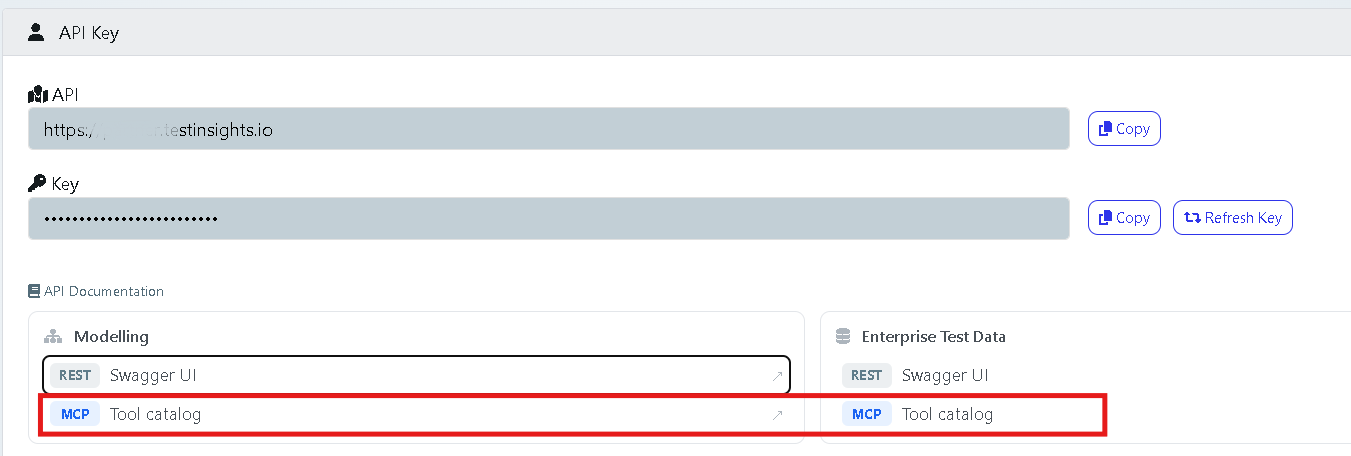
4. Obtain Your API URL
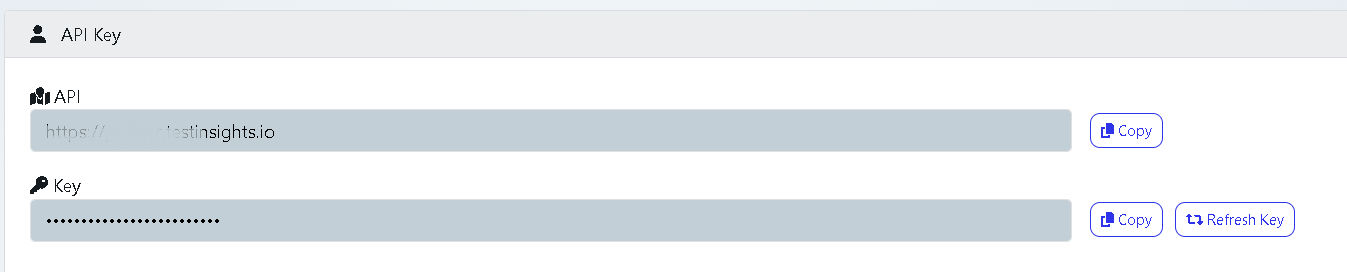
You can find your API URL on the Cloud Platform.
Navigate to:
Profile Picture (top-right) → Profile Settings
Scroll down to the API Key section, where you'll find both your API URL and API key. (Contact your sales representative for Cloud Platform access if required.)
5. Configure the Module URL
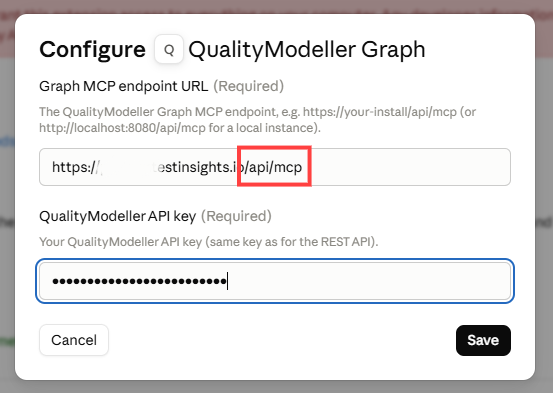
For each extension, append the appropriate path to your API URL.
Enterprise Test Data (TDM)
Append: /api/tdm/mcp
Modelling (Graph)
Append: /api/mcp
6. Enter Your API Key
Paste your API key into the extension configuration.
7. Enable the Extensions
Enable each extension.
Claude will indicate whether the connection was successful.
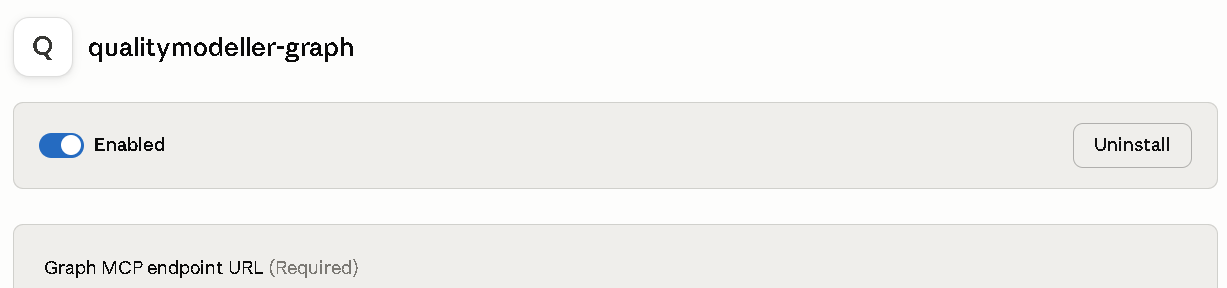
The available tools will be listed here:
8. Restart Claude Desktop
After installing and enabling the extensions:
Fully quit Claude Desktop.
Reopen Claude Desktop.
The MCP tools should now be available.
What you can do with it
Each bundle gives Claude a specific, limited set of tools to TestModeller. Check the tool catalog for the bundle you've installed to see exactly what's available.
Modelling (Graph): browse your test models, inspect their steps and variables.
Enterprise Test Data (TDM): browse your database connections and schemas, inspect table and column structure, and update descriptive metadata such as sensitivity tags.
Once connected, just ask Claude in plain language and it calls the right tools for you, no need to know tool names or write queries.
A few examples of the kind of thing you can ask:
Understand an unfamiliar schema. Ask Claude to summarize one of your data definitions - what tables it has, how they relate, and any conventions across them.
Spot sensitive data for compliance. Ask which columns look like personal or sensitive data (emails, names, addresses, phone numbers, credentials), so you know where PII/PCI/PHI tagging is needed.
Explore your test model library. Ask Claude to find a model by name or topic and describe what it actually tests.
Check on automation jobs. Ask Claude to list available server processes or check the status of a job you've triggered.
Note: Since the answers will be specific to your own live TestModeller data, the specifics will always be unique to your environment.
Troubleshooting
If an extension shows as disconnected after enabling it, double-check that:
• The URL uses the correct domain with the correct path suffix for that module
• The API key was pasted correctly with no extra whitespace
• Claude Desktop has been fully restarted since the last configuration change